This walkthrough covers the complete workflow from setting up your first app to uploading metadata, screenshots, and Custom Product Pages to the stores.
Prerequisites:
You require a developer account for App Store Connect and/or Google Play Console.
The app already exists within the respective store (draft or published).
1. Create an App
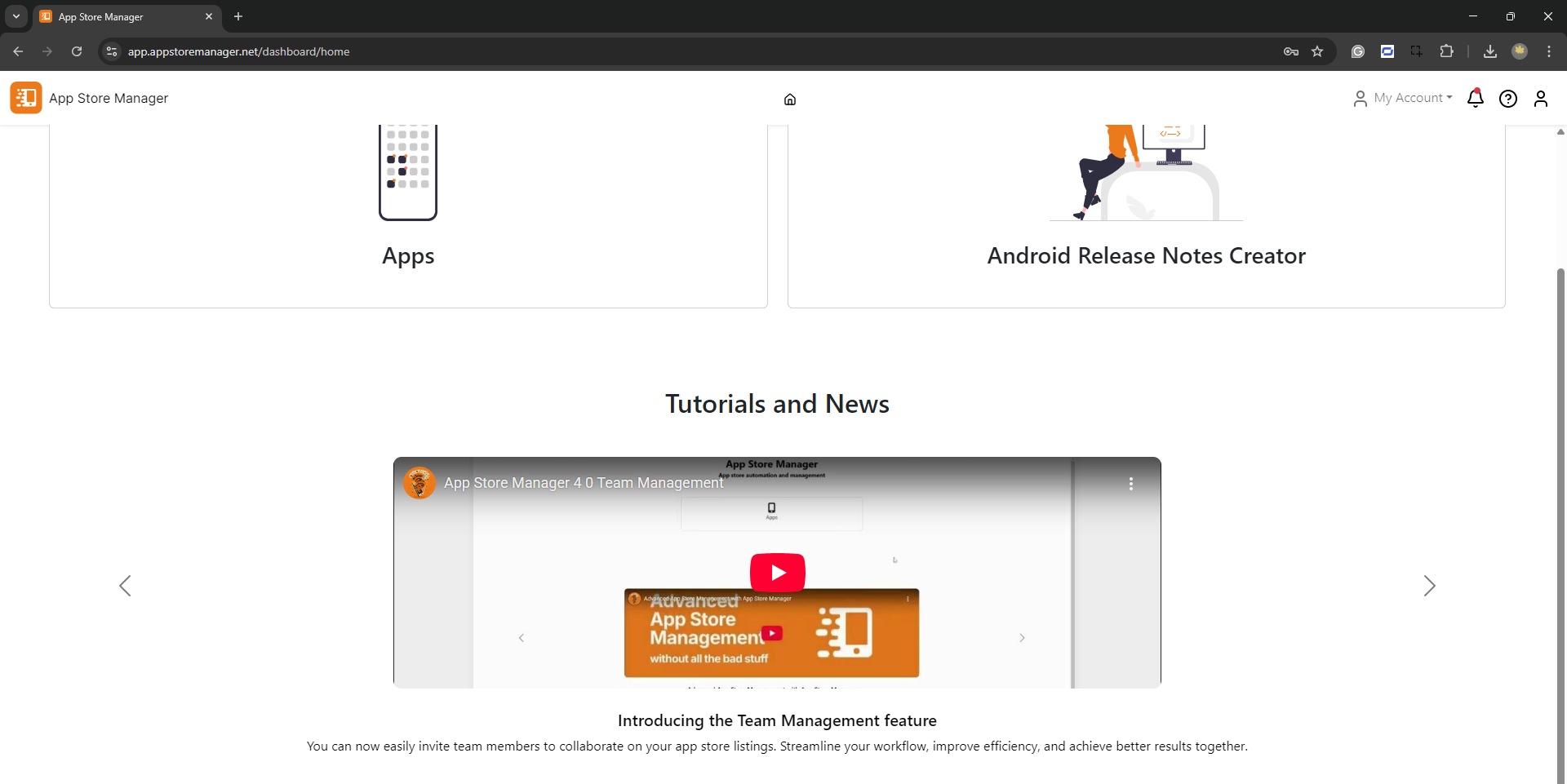
After logging in to the App Store Manager, click My apps on the front page.
App Store Manager front page
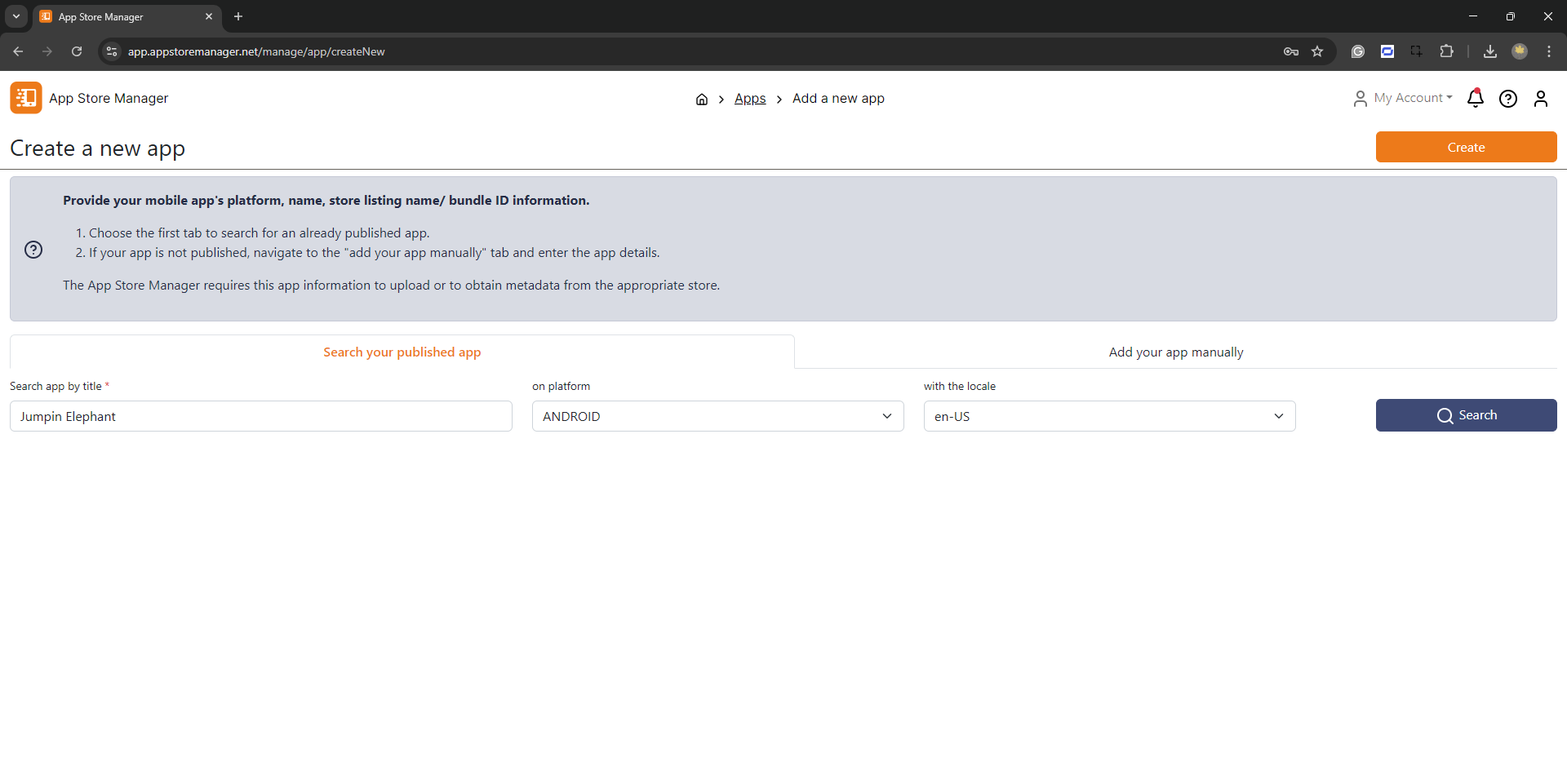
Add an app manually
Click New App and provide:
Field
Description
Platform
Android or iOS
Name
A display name (use your real app name for clarity)
Package name / Bundle ID
The technical identifier from your app code and store configuration
Add an existing published app
Already published? Use the search function instead:
Enter the app title (or part of it)
Select the platform (Android or iOS)
Choose the store language
Click Search
Search and add existing apps
Select your app from the results and click Finish.
If your app doesn't appear, check the spelling, ensure it's published, and verify the platform selection. Unpublished apps must be added manually.
2. Create a Store Listing
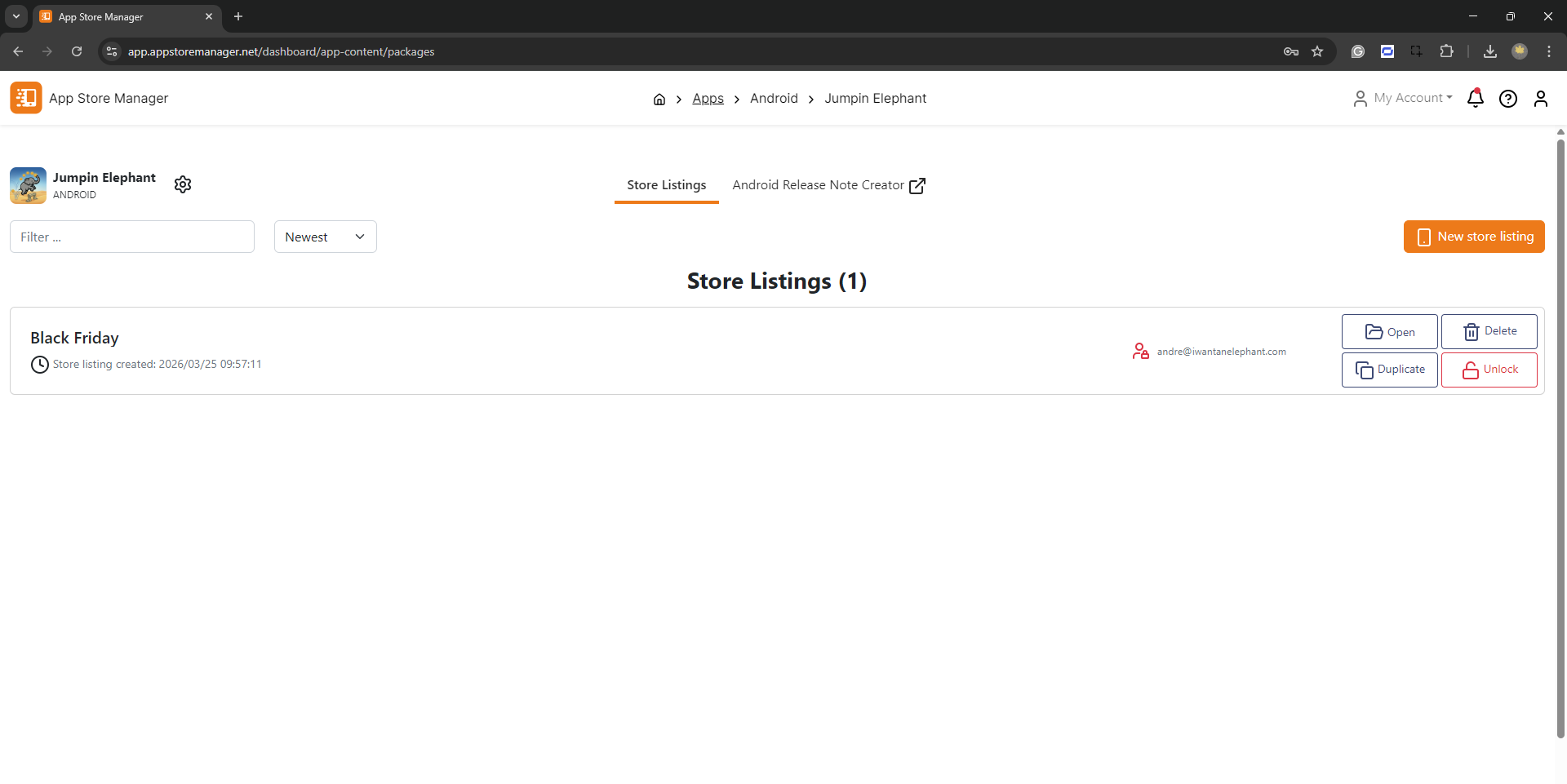
A Store Listing (formerly called "package") is a container for your metadata and assets. You can create multiple store listings for different occasions — regular operation, seasonal campaigns, A/B tests, etc.
Open your app and click New Store Listing.
Store listing creation
Give it a descriptive name and click Save.
A store listing contains:
Asset Type
Contents
App descriptions
Title, short description, long description, keywords, promotional text
Screenshots
All device sizes, all languages
App previews
Video previews (iOS only)
Icons & graphics
App icon, feature graphic (Android)
3. Add Metadata
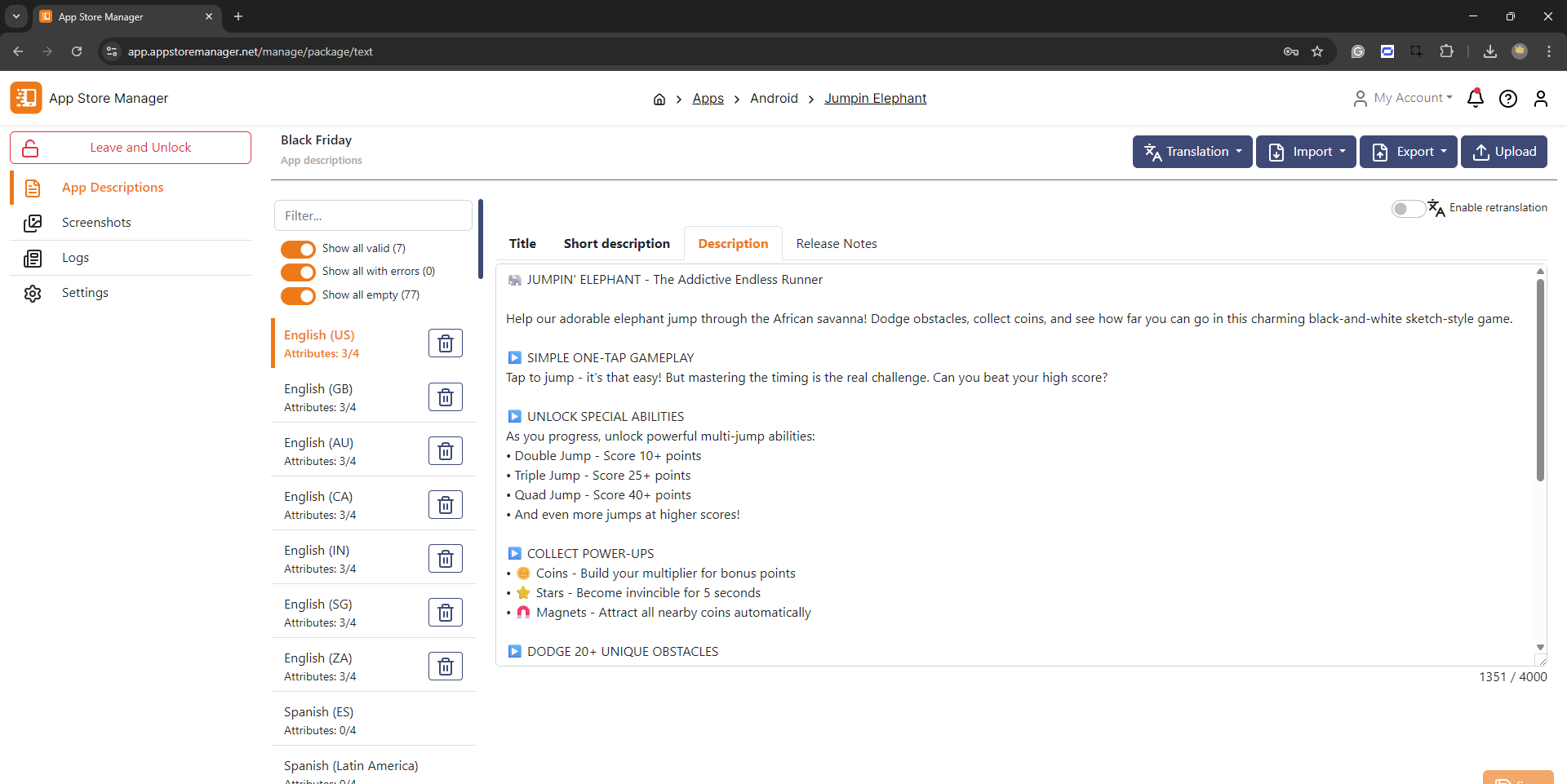
Navigate to App descriptions in your store listing. Here you can manage text content for all languages.
Metadata editing view
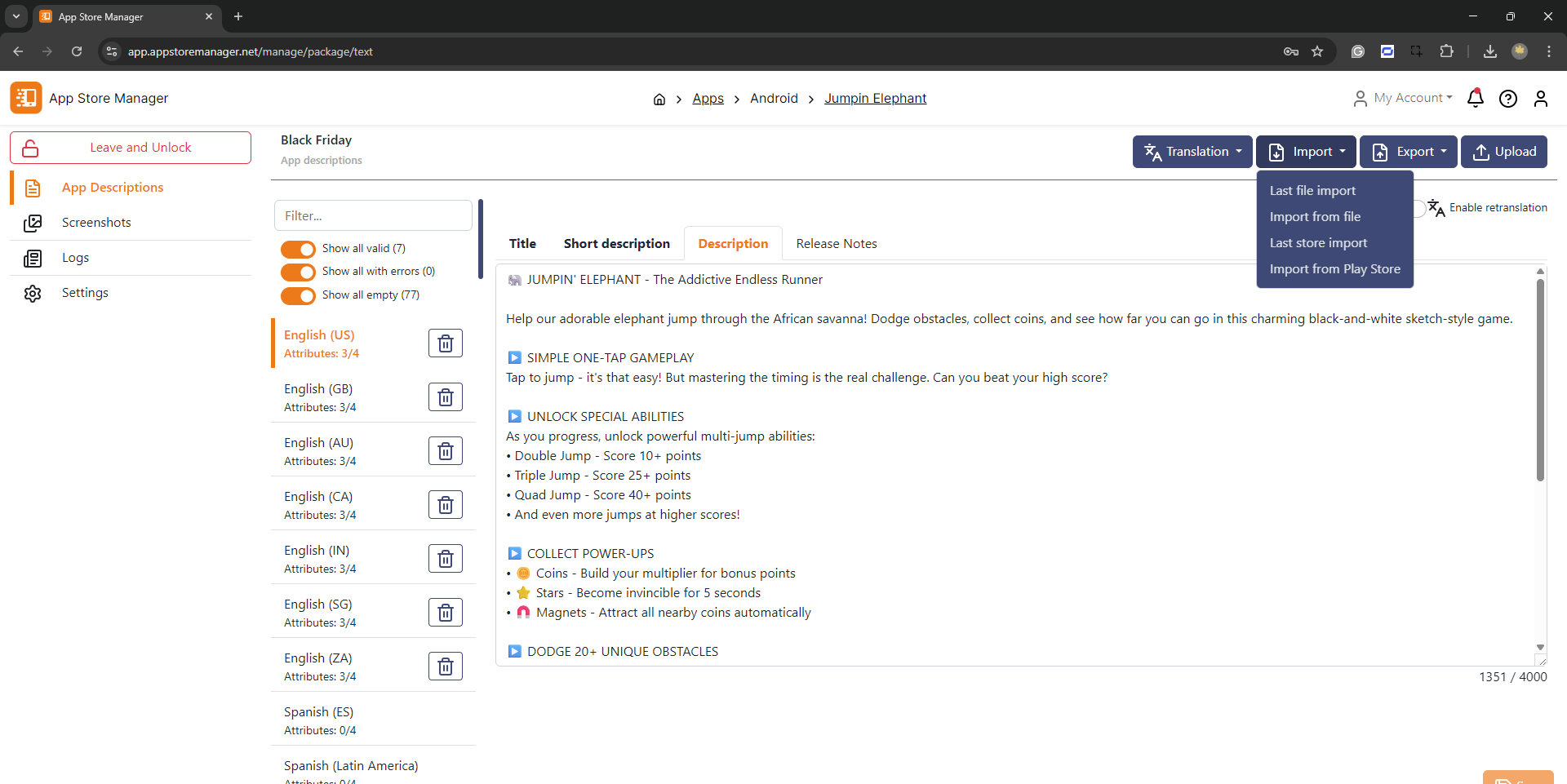
Input methods
Type directly — Enter content manually for each language and field.
Import from store — Pull existing metadata from your live App Store Connect or Google Play listing.
Import from store
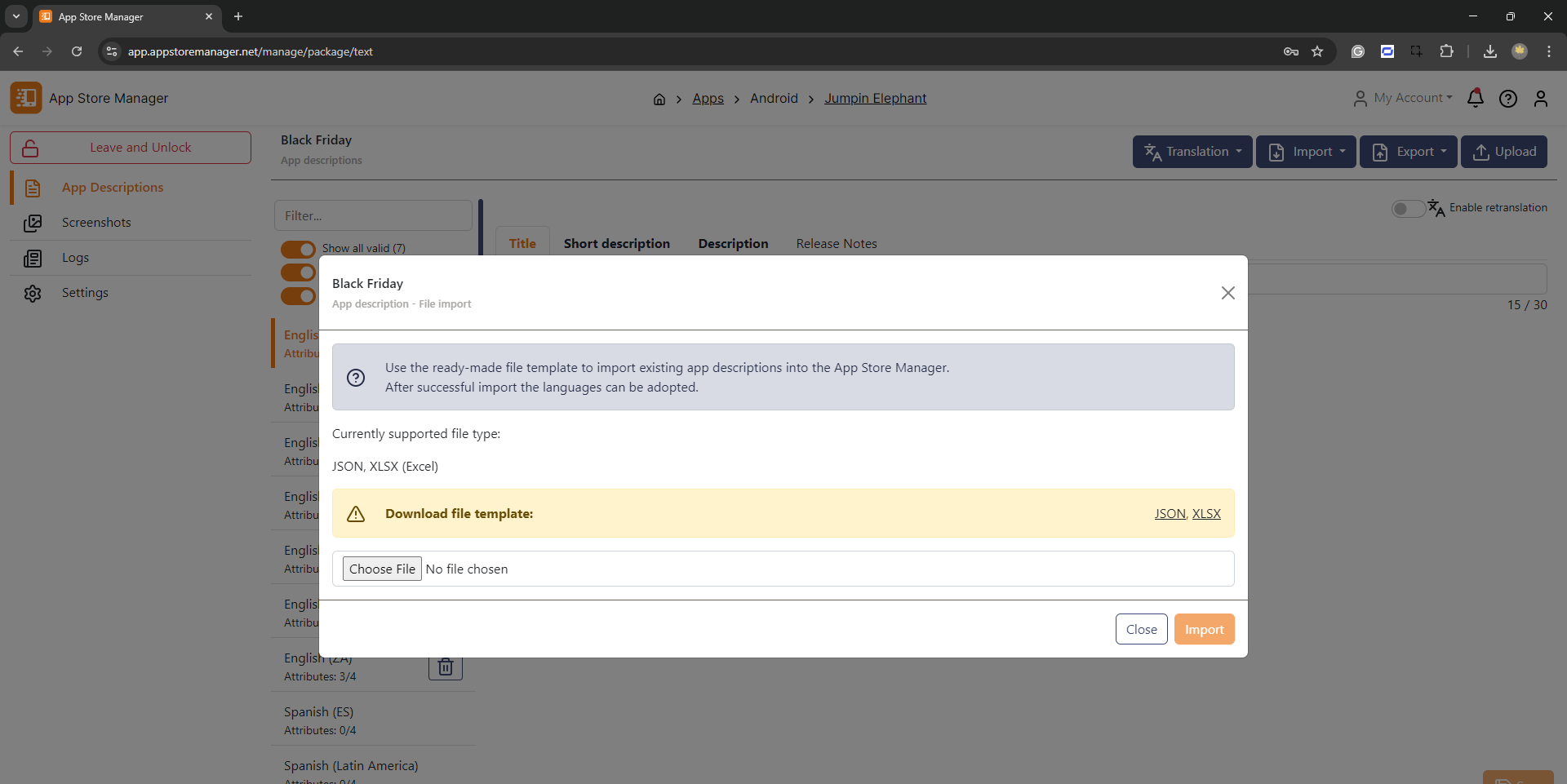
Import from file — Use Excel or JSON templates to bulk-import content.
After import, preview and select which languages to add:
Google Play requires title, short description, and description when creating a new language. These fields are mandatory.
4. Add Screenshots (Drag & Drop)
Navigate to Screenshots in your store listing. The Screenshot Manager supports drag & drop with Smart Recognition — it automatically detects language, device size, and slot position from your folder structure and filenames.
Screenshot Manager
How to upload
Drag files or folders directly into the Screenshot Manager
The Smart Recognition Engine detects:
Language — from folder names like en-US, german, deutsch
Slot position — from filenames like 1.png, en-US_3_1290x2796.png
Device size — from the actual image dimensions
Review the auto-assigned positions
Manually assign any files in "Uncategorized"
Auto-detected locales and resolutions
Organize your screenshots in folders by language (e.g., screenshots/en-US/, screenshots/de-DE/) for automatic recognition.
Use automatic translation to expand into new markets quickly.
Navigate to App descriptions
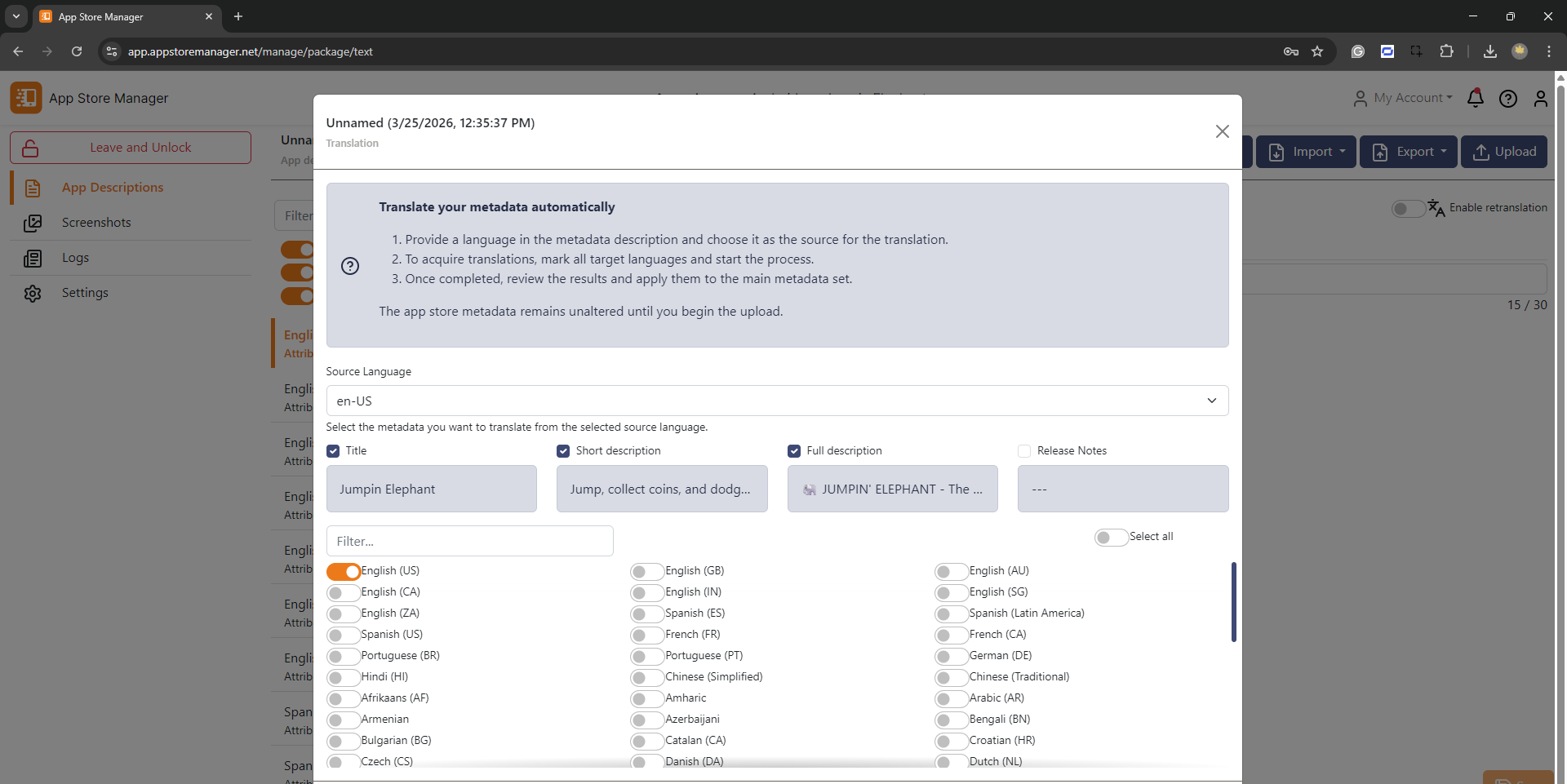
Click Translate
Select the source language
Select target languages
Click Translate
Automatic translation
Preview and select which translations to adopt:
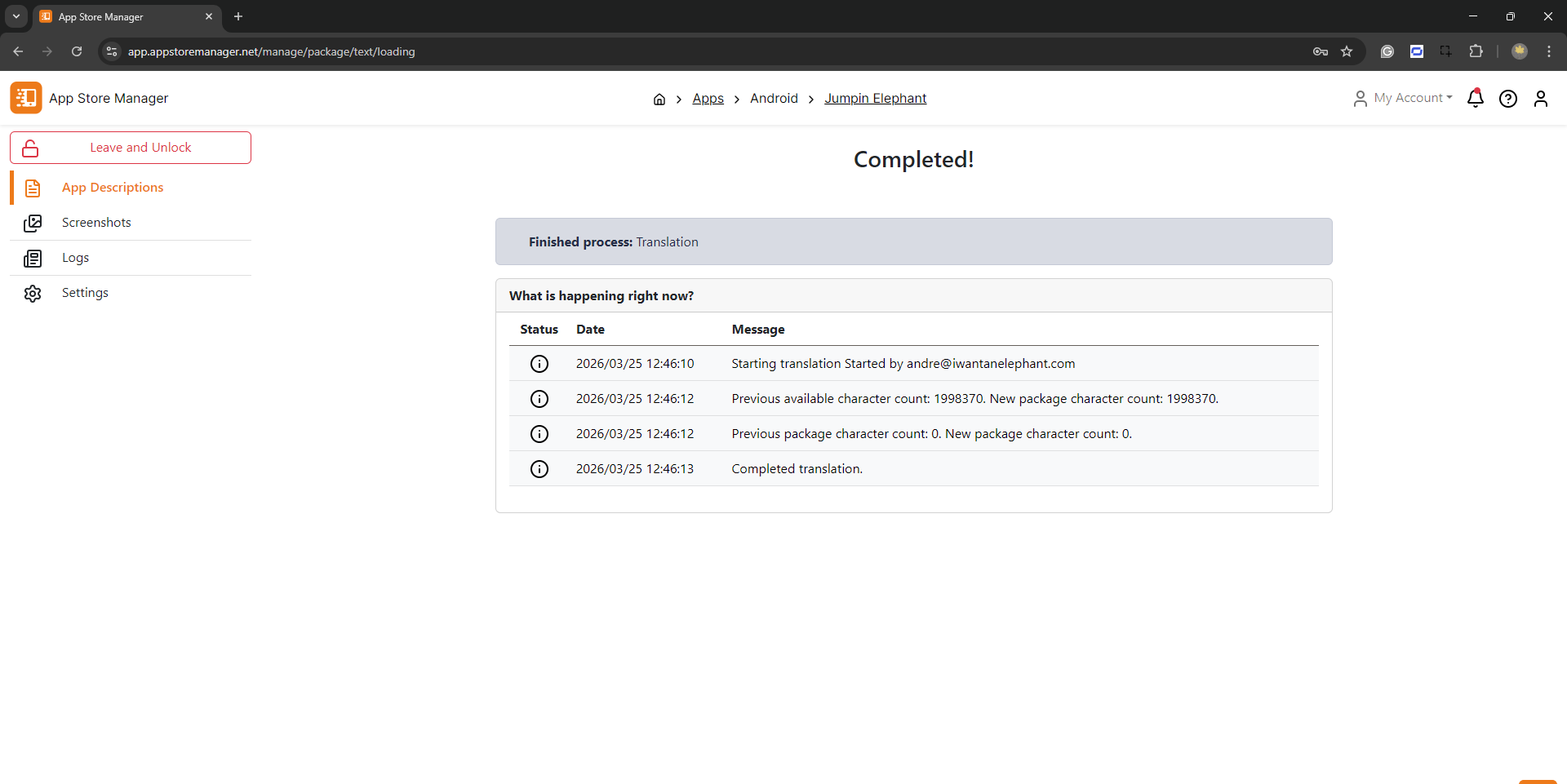
Translation in progress
Translations consume characters from your subscription plan. Review translations carefully — word lengths vary between languages.
7. Validate
Before uploading, check for errors. The App Store Manager shows validation status for each language:
Bold fields — filled
! icon — validation error (usually exceeds character limit)
Use the filter to quickly find languages with errors.
Common issues:
Text exceeds maximum length
Required fields empty
Invalid characters
8. Upload to Stores
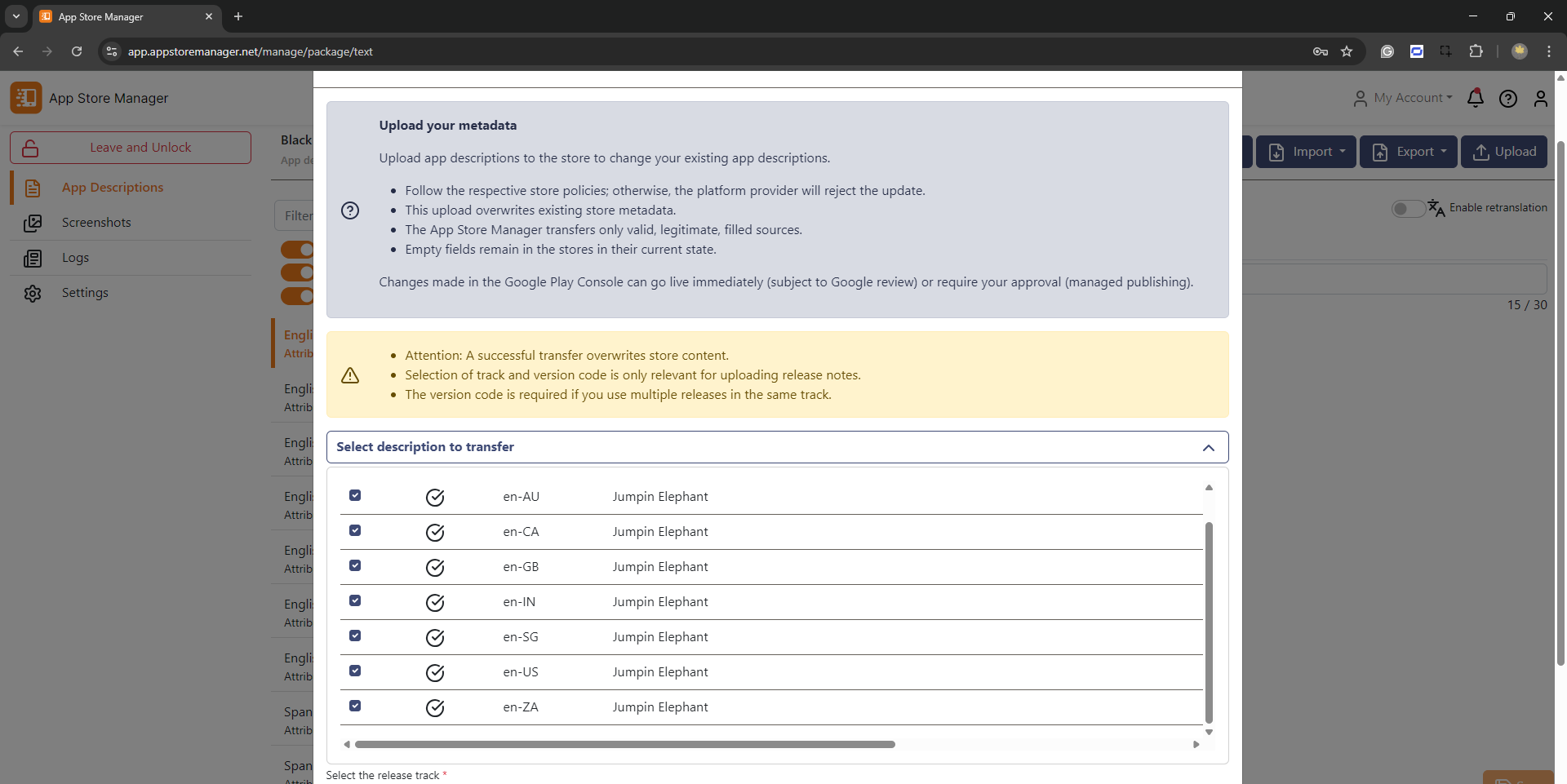
Navigate to Upload to… and select the languages to transfer.
Select languages for upload
Uploading overwrites existing content in the store. Empty fields do not overwrite — only filled fields are transferred. Create a backup before uploading.
Upload options
Platform
Options
Android
Select release track: production, beta, alpha, or internal
iOS
Changes are staged — you must manually submit for review in App Store Connect
Start the upload
Select languages
Add credentials (if not saved)
Click Upload
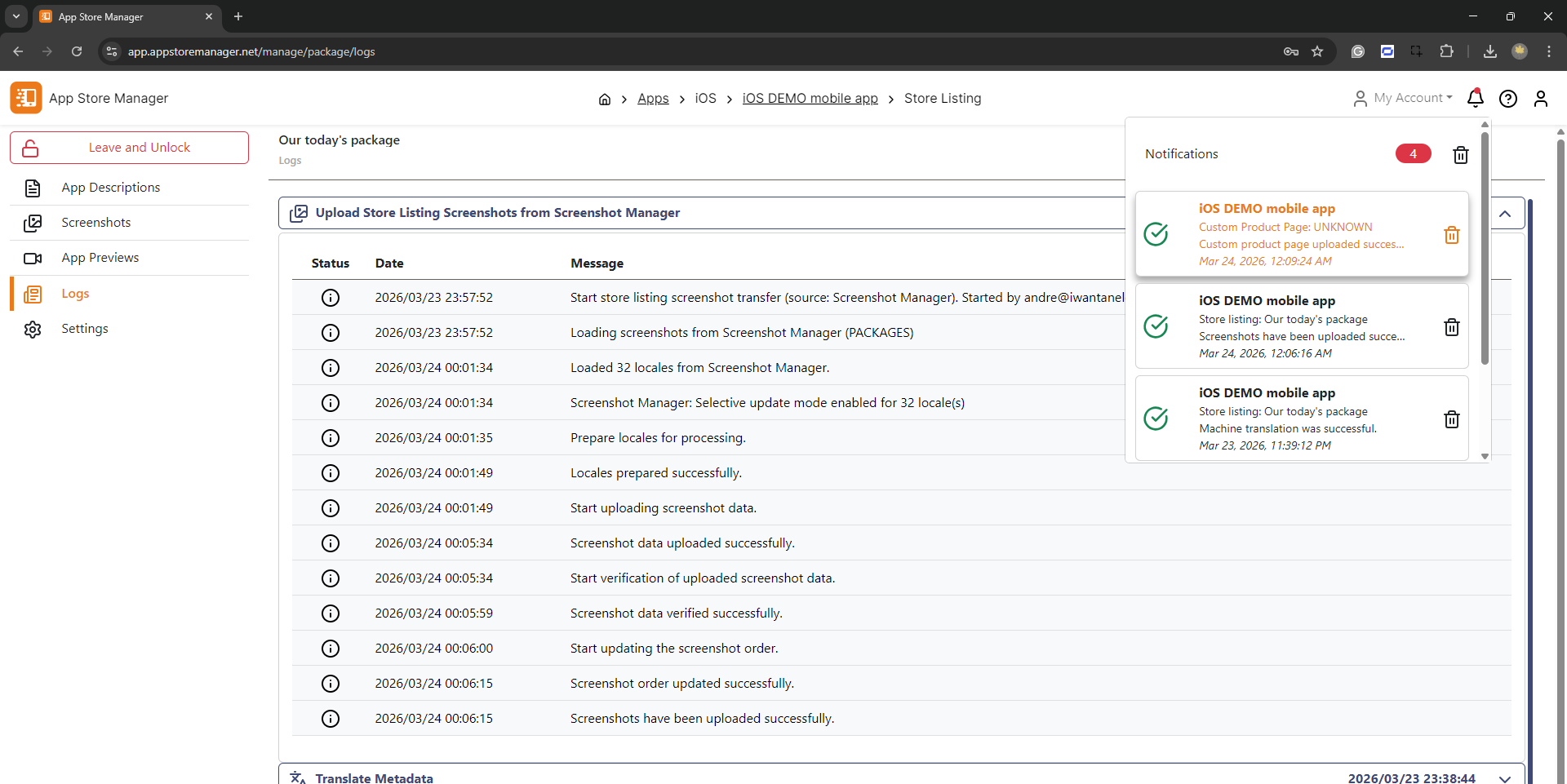
Monitor progress in the activity log
Activity log
Full uploads with all languages and resolutions can take up to 1 hour. Business customers receive prioritized processing.
9. Custom Product Pages (iOS)
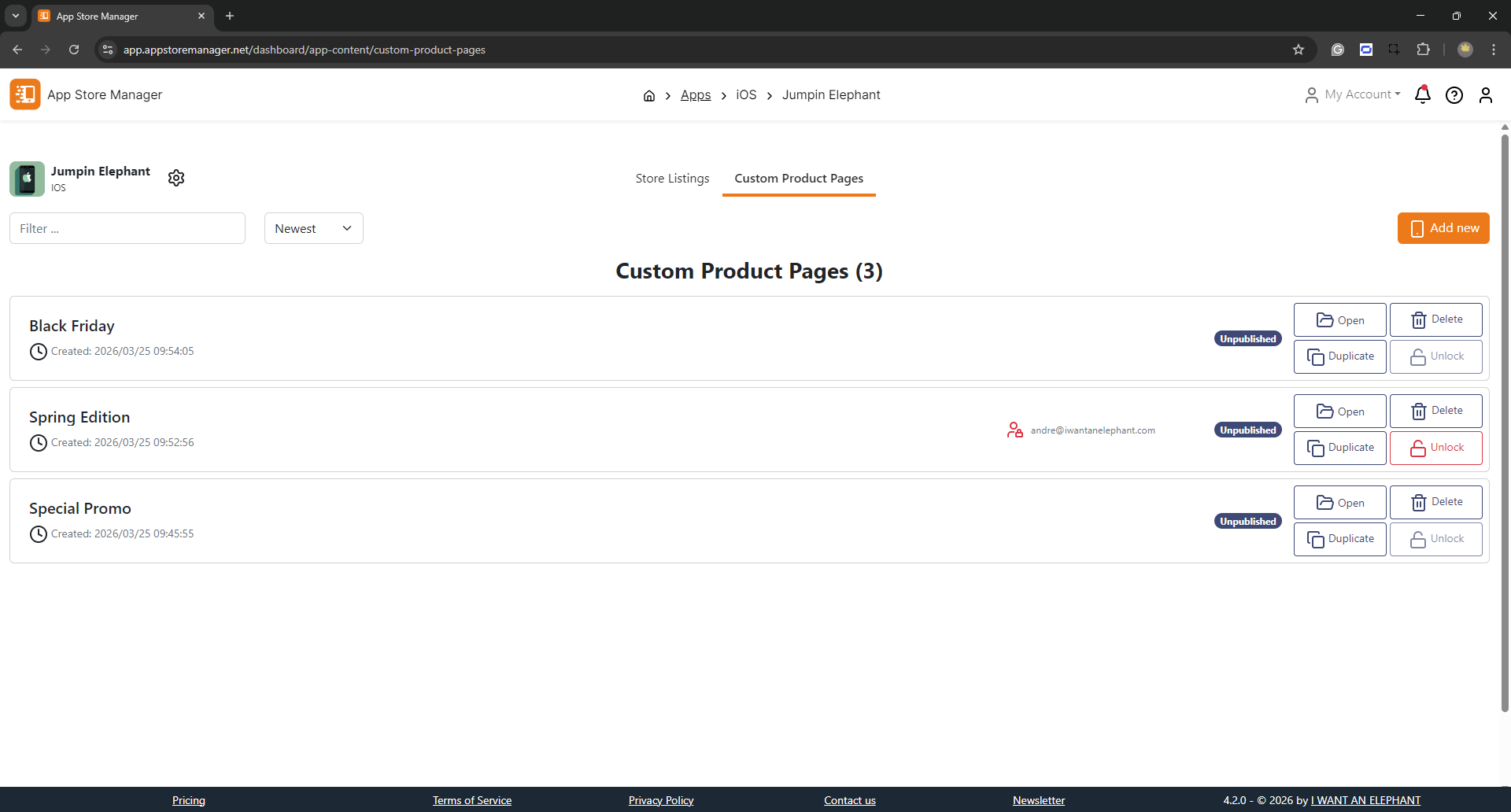
Custom Product Pages let you create alternate App Store listings for different audiences or campaigns. Available for Premium Plan subscribers.
Custom Product Pages overview
Create a CPP
Navigate to Custom Product Pages
Click New CPP
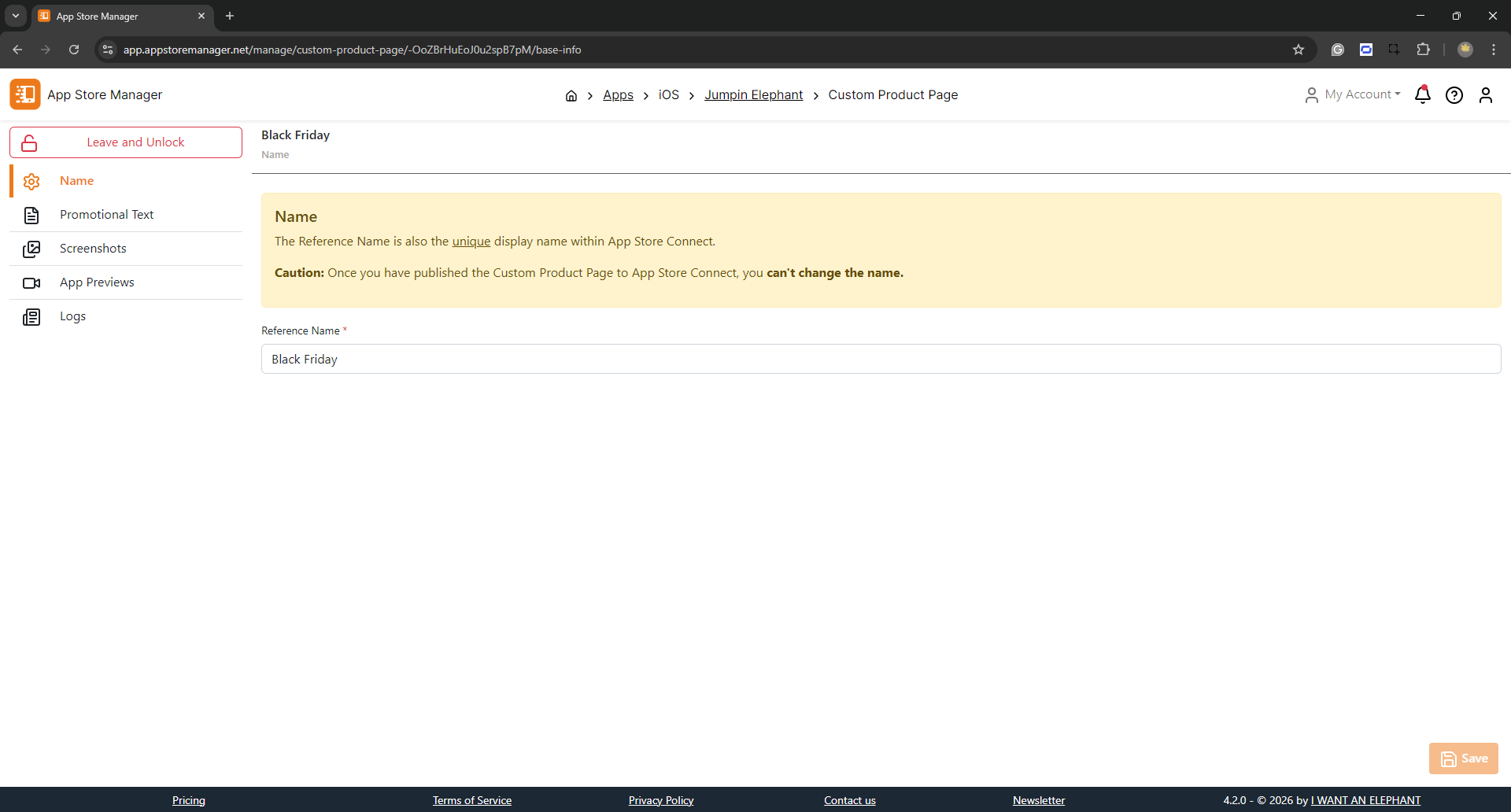
Enter a name (used as identifier in App Store Connect — cannot be changed later)
Name your Custom Product Page
Add content
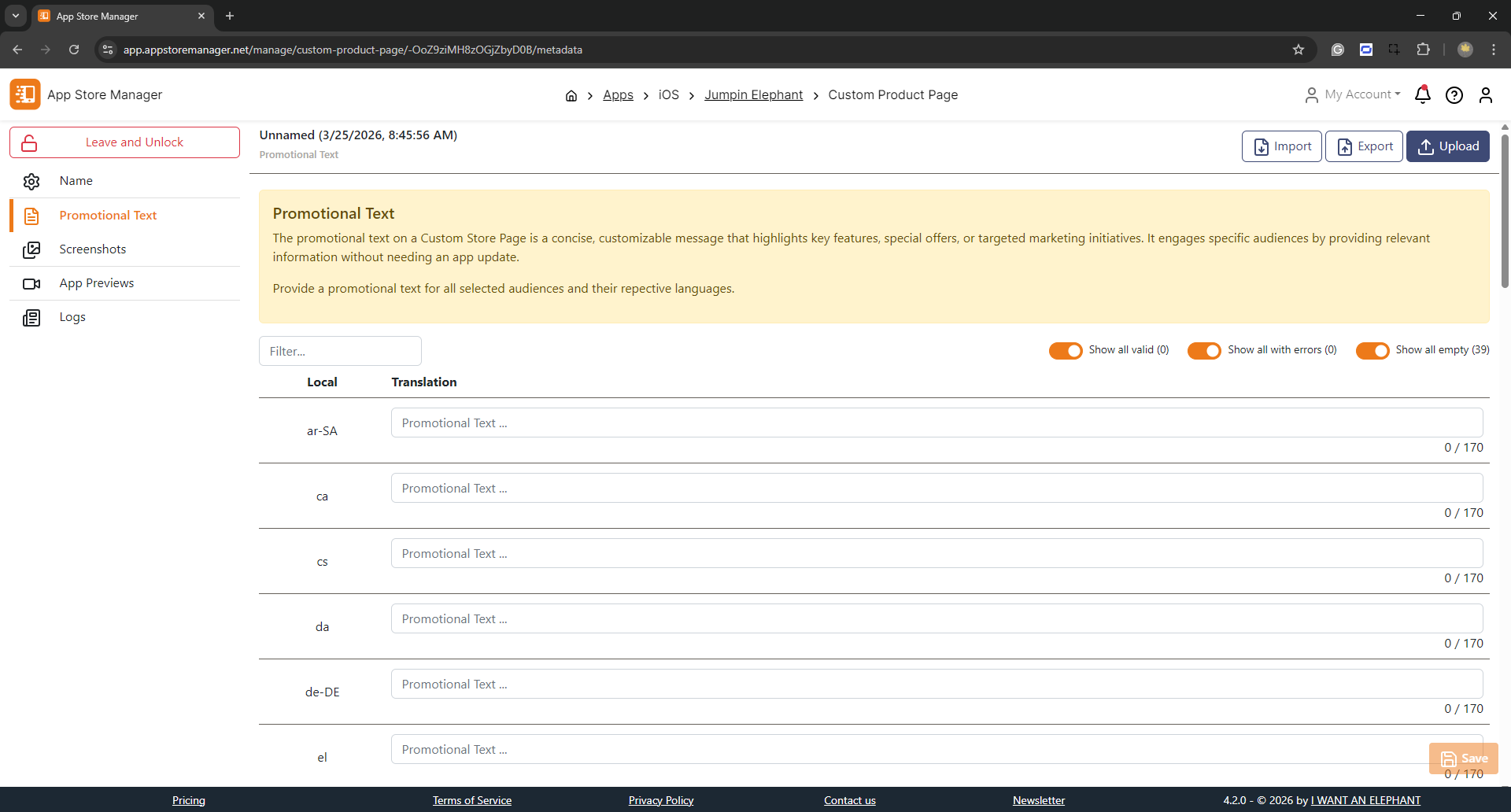
Promotional text — Import/export via JSON or Excel templates.
CPP promotional text
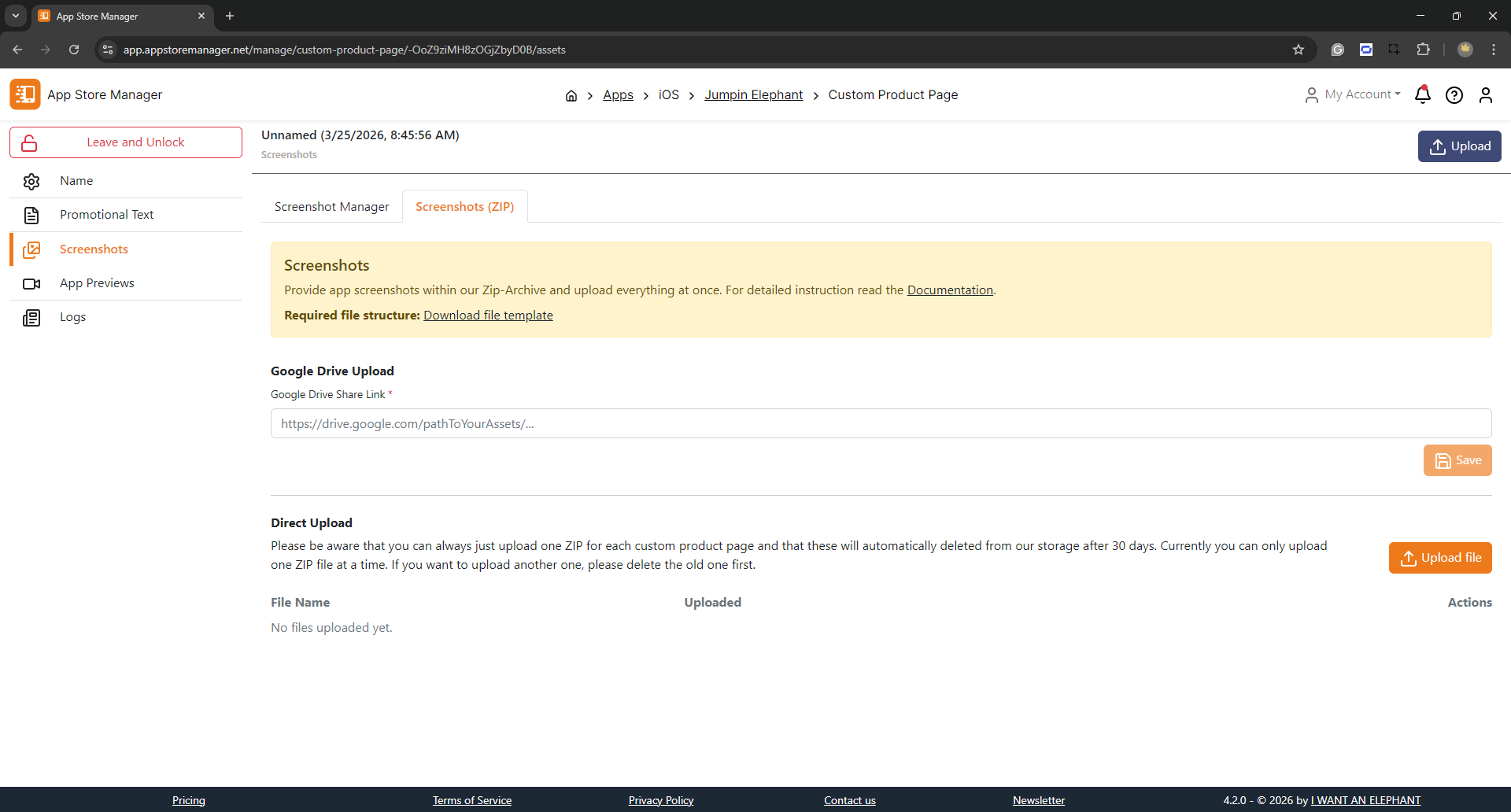
Screenshots — Same drag & drop workflow as standard store listings.
CPP screenshot upload
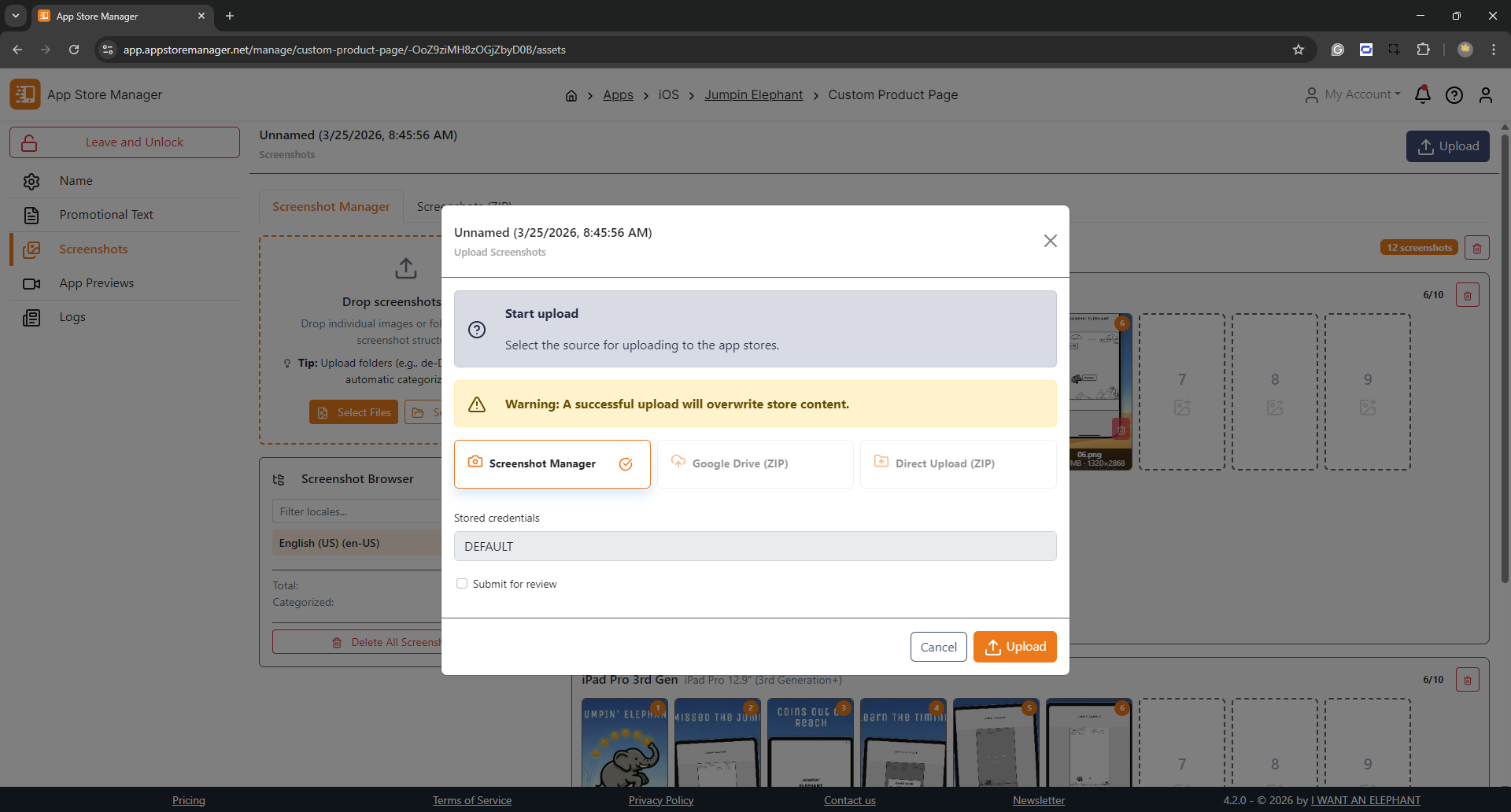
Upload and submit for review
When ready, upload the CPP to App Store Connect. You can submit directly for Apple review from within App Store Manager.
Upload and submit CPP for review
App Store Connect supports up to 35 Custom Product Pages simultaneously.